5 Simple Ways to Get Rose Blackpink Laptop Wallpapers
If you’ve ever wanted your laptop to echo the chic vibe of Rose from Blackpink, a well‑chosen wallpaper can do the trick. The right image not only showcases her signature style but also sets a tone for your whole digital workspace. Below you’ll find a practical guide that walks you through sourcing, tweaking, and installing Rose Blackpink laptop wallpapers that feel both fresh and personal.
Understanding the Rose‑Inspired Aesthetic
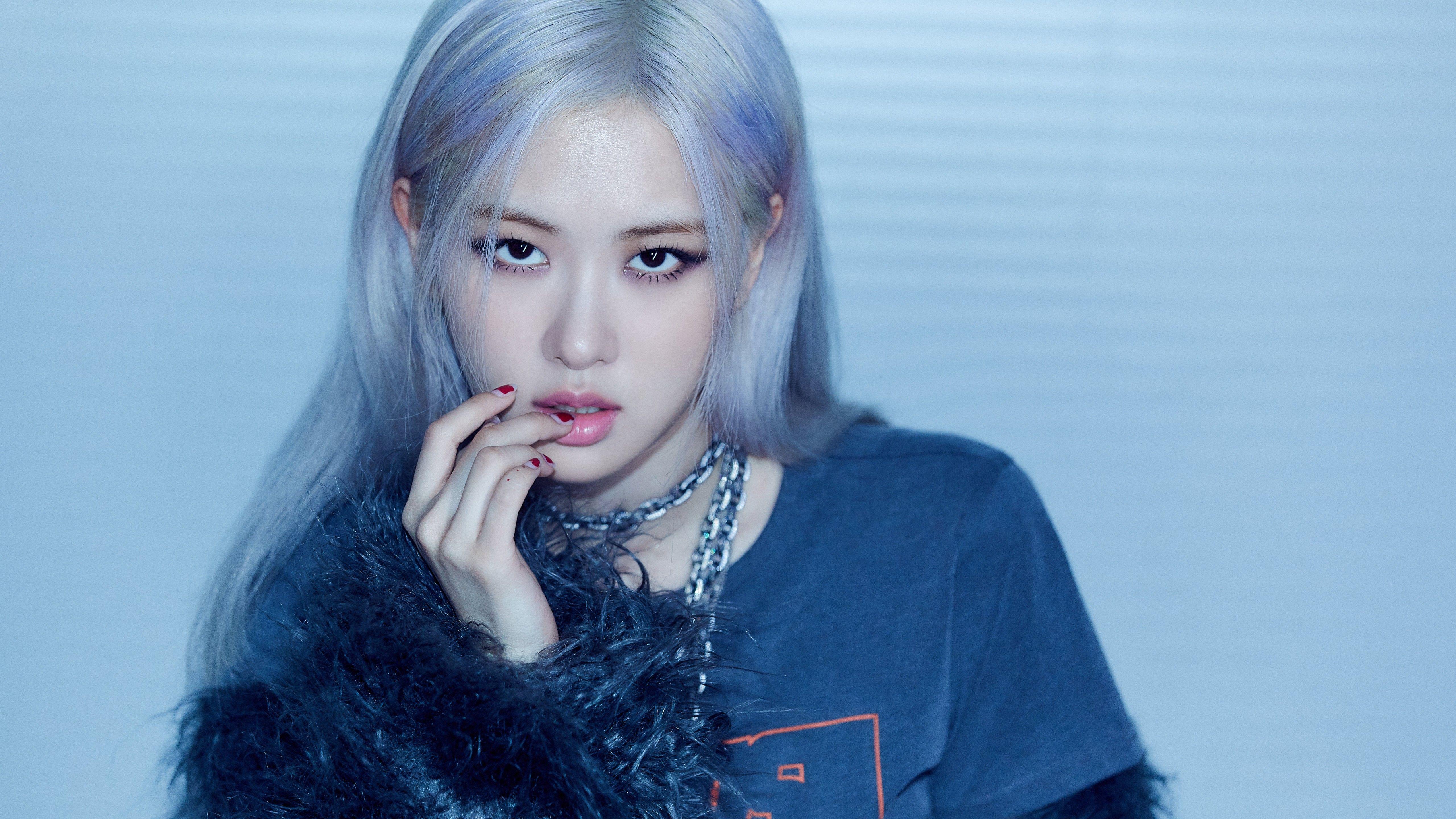
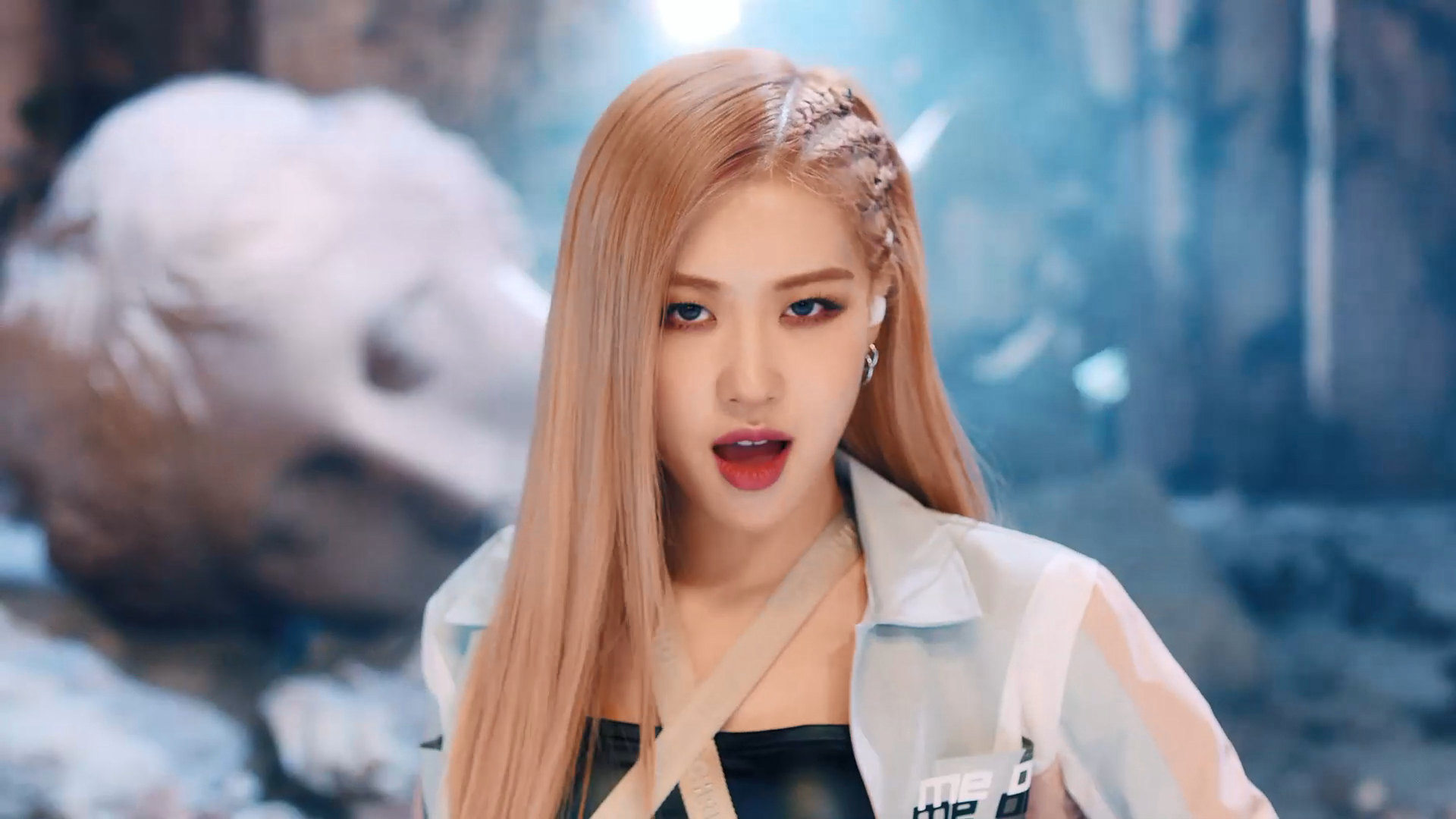
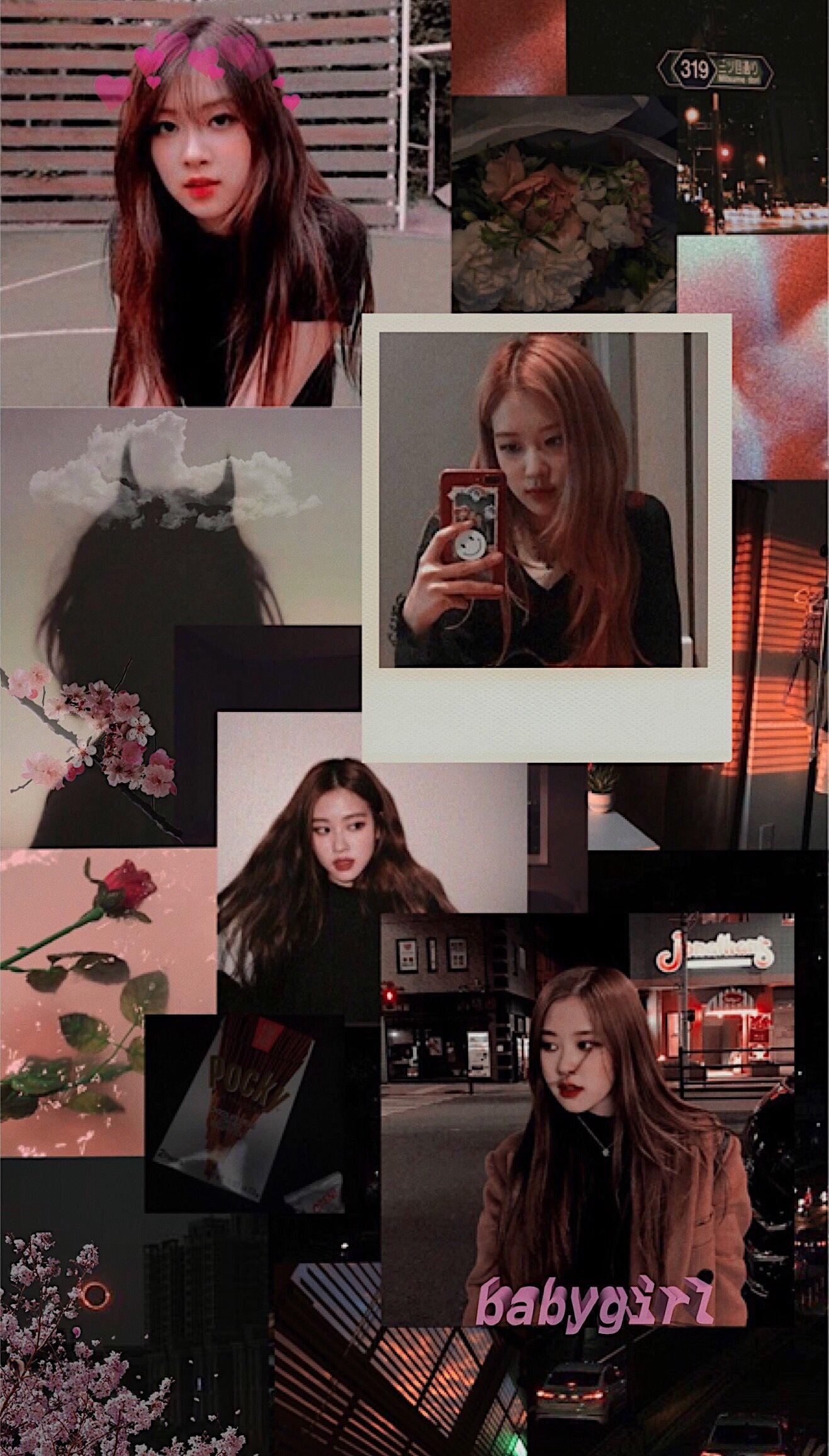
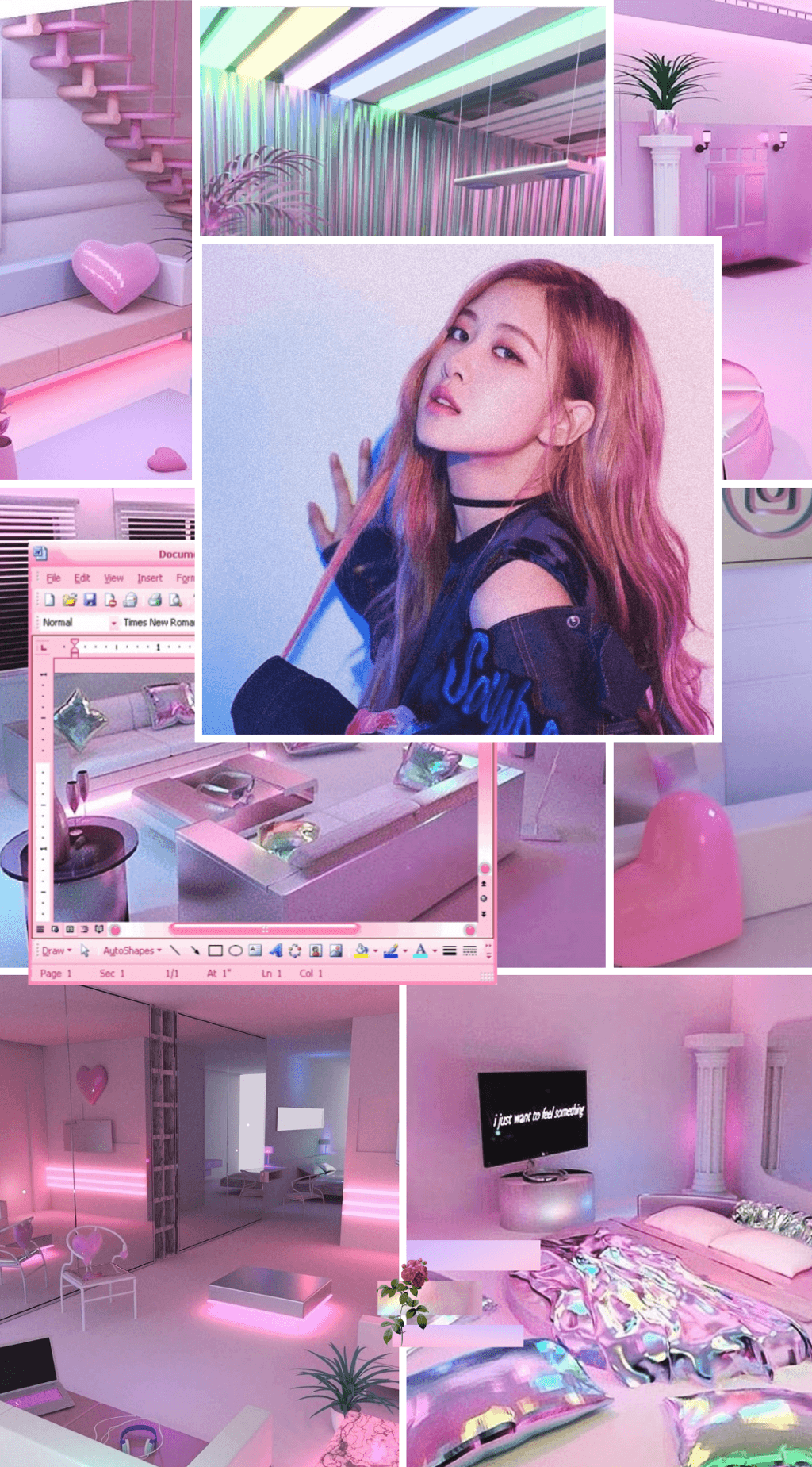
Rose’s look is a blend of pastel softness and bold pop‑culture accents. Think soft pinks, buttery hues, and occasional metallic sparkles, all balanced with a confident, edgy edge. When scouting for a wallpaper, aim for images that capture that balance—whether it’s a close‑up of her stage outfit, a candid behind‑the‑scenes snap, or a stylized fan‑art piece. The goal is to keep the visual energy uplifting without overwhelming the icons on your desktop.
Finding High‑Quality Rose Blackpink Laptop Wallpapers
- Official channels. YG Entertainment’s YouTube and Instagram often release high‑resolution promotional photos that are perfect for a clean, licensed look.
- Fan‑made repositories. Sites like Wallpaper Abyss, Reddit’s r/Blackpink, and DeviantArt host thousands of user‑created wallpapers, many already sized for common laptop resolutions.
- Social‑media hashtags. Search #RoseWallpaper or #BlackpinkAesthetic on Twitter and TikTok; creators frequently share downloadable links in the comments.
When you spot a promising image, check the file details. Look for at least 1920×1080 pixels for a 1080p screen, and aim for 2560×1440 or higher if you have a Retina or 4K display. A larger source file means you can crop without losing clarity.
Choosing the Right Resolution and Aspect Ratio
Most laptops use a 16:9 aspect ratio, but ultrabooks and newer MacBooks may opt for 16:10 or even 3:2. Before you download, compare the image’s dimensions with your screen’s native resolution. If they differ, a quick crop in a free editor like GIMP or an online tool such as Photopea can save you from stretched or squished visuals.
Keep file size modest—under 5 MB works well for quick loading and minimal impact on system performance. Formats like JPEG offer good compression while preserving detail; PNG is ideal if the wallpaper contains transparent elements or sharp graphic lines.
Editing Tips to Personalize Your Wallpaper
Even a perfect photo can feel more yours with a few tweaks. Adjust the brightness or contrast to ensure desktop icons remain legible; a slightly dimmer background often helps icons pop without sacrificing the image’s vibe. Adding a subtle gradient overlay in a complementary pastel shade can unify the look with your chosen icon theme.
If you enjoy a minimalist aesthetic, consider cropping out busy background elements and focusing on Rose’s face or a signature accessory. Many editors let you add text—perhaps a short lyric from “On The Ground”—in a sleek, semi‑transparent font for extra flair.
Setting Up on Different Operating Systems
Windows 10/11: Right‑click the desktop, choose “Personalize,” then “Background.” Select “Picture,” browse to your saved file, and adjust the fit (Fill, Fit, or Center) based on how you cropped the image.
macOS: Open “System Settings,” navigate to “Desktop & Screen Saver,” and drag the image into the preview pane. macOS automatically scales the picture, but you can toggle “Fill Screen” for a tighter fit.
Linux (GNOME/KDE): Most desktop environments let you right‑click the desktop and choose “Change Background.” Browse to the image and select the appropriate scaling option. Some distributions also support dynamic wallpapers that change based on the time of day.
Maintaining a Cohesive Desktop Theme
To keep the aesthetic consistent, match your icon packs, cursor set, and even the color scheme of your terminal or code editor to the wallpaper’s palette. For a rose‑pink vibe, look for pastel icon themes on sites like GitHub or the GNOME‑look repository. Pairing these with a subtle, dark‑mode UI can make the bright wallpaper stand out without becoming garish.
Don’t forget to refresh your lock screen image as well; a matching lock screen creates a seamless visual flow from boot to login.
FAQ
Where can I find royalty‑free Rose Blackpink wallpapers?
Official media releases from YG Entertainment are safe to use, and many fan artists share their work under Creative Commons licenses on platforms like DeviantArt and Pixabay. Always check the licensing terms before downloading.
Can I use a wallpaper on multiple devices without losing quality?
Yes—choose the highest resolution available (typically 4K or above) and let each device scale the image down. Higher‑resolution files retain sharpness when resized for smaller screens.
Is it okay to edit copyrighted images for personal use?
Modifying an image for personal, non‑commercial use generally falls under fair‑use guidelines, but you should avoid distributing the edited version publicly.
What’s the best file format for a wallpaper with text overlays?
PNG preserves text clarity and transparent elements better than JPEG, making it the preferred choice for images with added typography.